
A Cito server runs one database engine: MySQL or PostgreSQL. This page covers servers running MySQL. If your server runs PostgreSQL, see Managing PostgreSQL Databases instead.
Using the Dashboard
You can manage MySQL databases from Site Settings, or alternatively from the Databases page in the dashboard. You can use the search bar to filter for specific databases. You can also use the ‘All servers’ checkbox to search for databases on other servers, if you have more than one. From Sites, you can navigate to Settings and then the ‘Databases’ section, to see a list of databases owned by that site.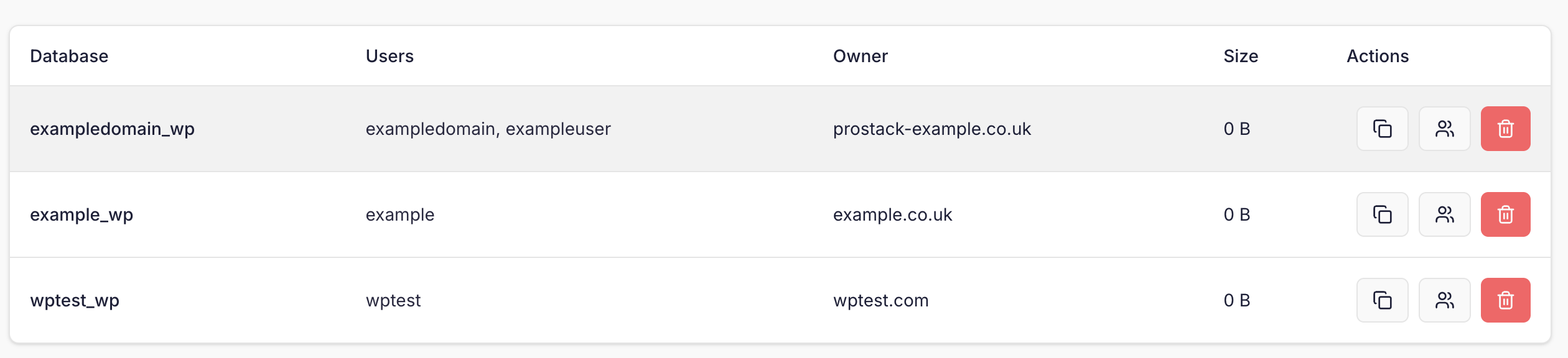 To add a new database, simply click the “Create Database” link in the top right corner of the dashboard.
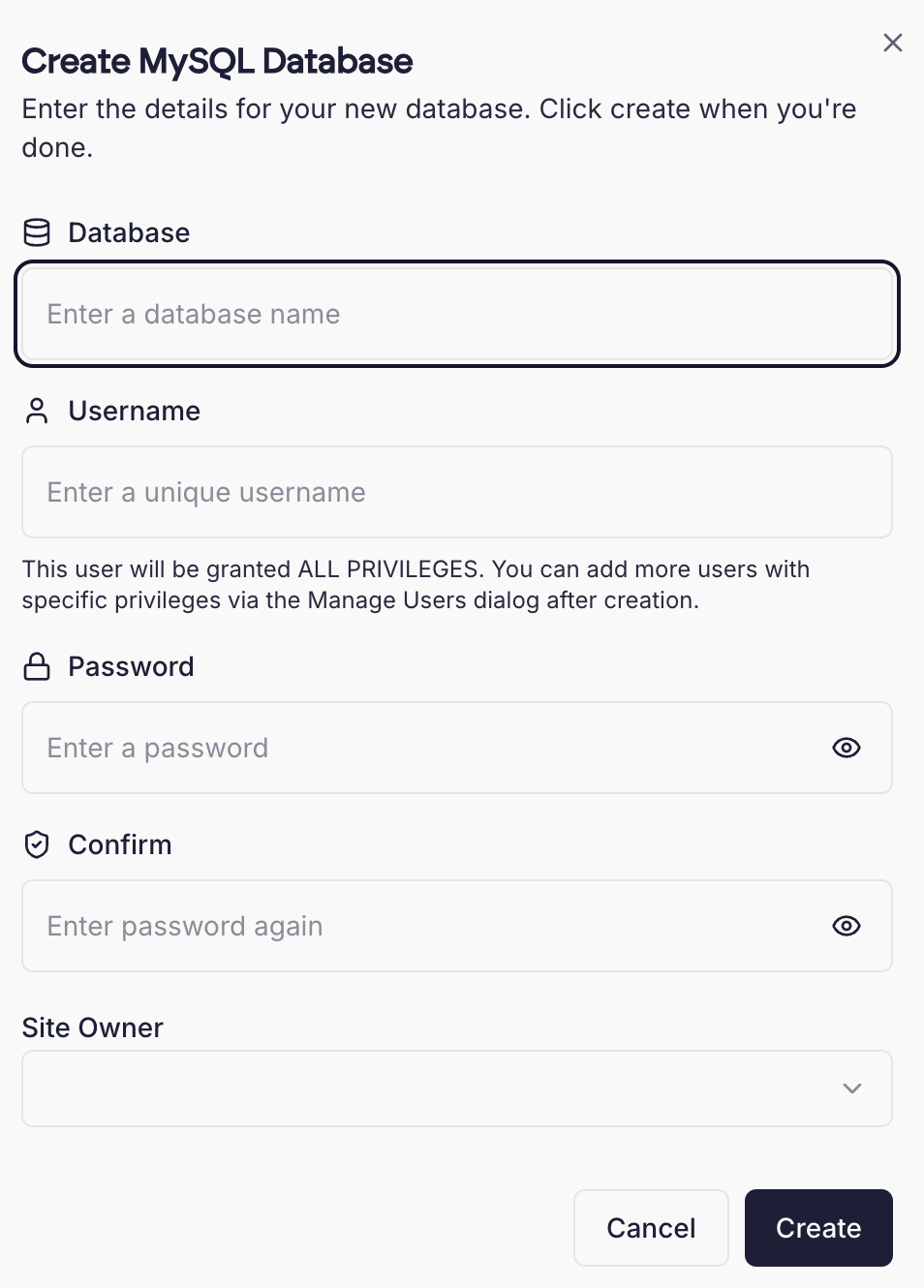 You will be prompted for a database name, username and password. The username and password will be automatically generated if left blank.
You may also need to select an owner for the database- this is a site that is associated with the database.
Once created, you will see the new database details displayed to you.
Cloning databases
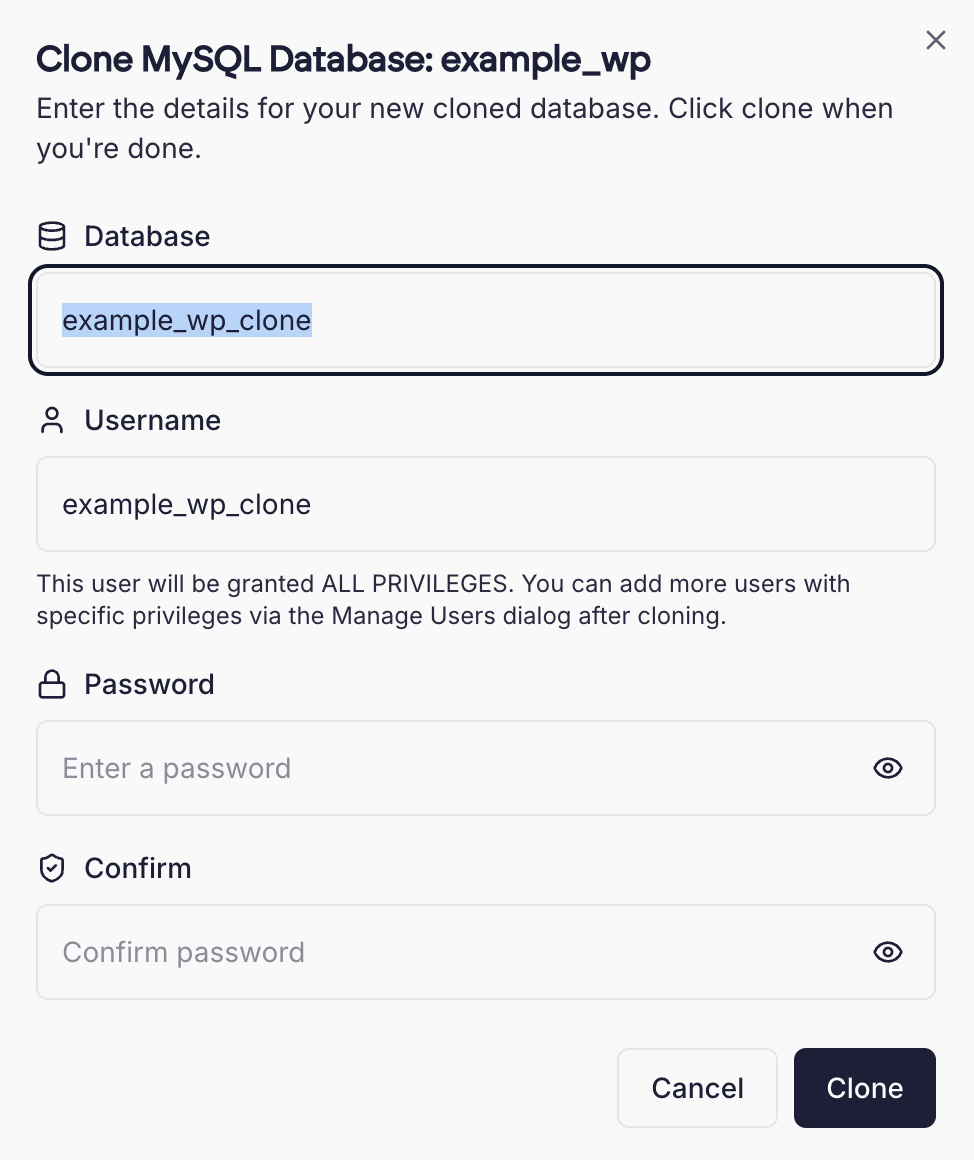
It can be useful to clone a MySQL database, for example if you need a copy of it for testing purposes. Cloning a database generates a new MySQL user. Existing grants and privileges are not copied. To clone a MySQL database, click the Clone icon in the actions menu on the databases page. You’ll need to specify a new username and password for the MySQL user, as well as a new name for the database.
Once done, click Clone to start the process. Large databases may take a few moments to complete.
Managing MySQL Users
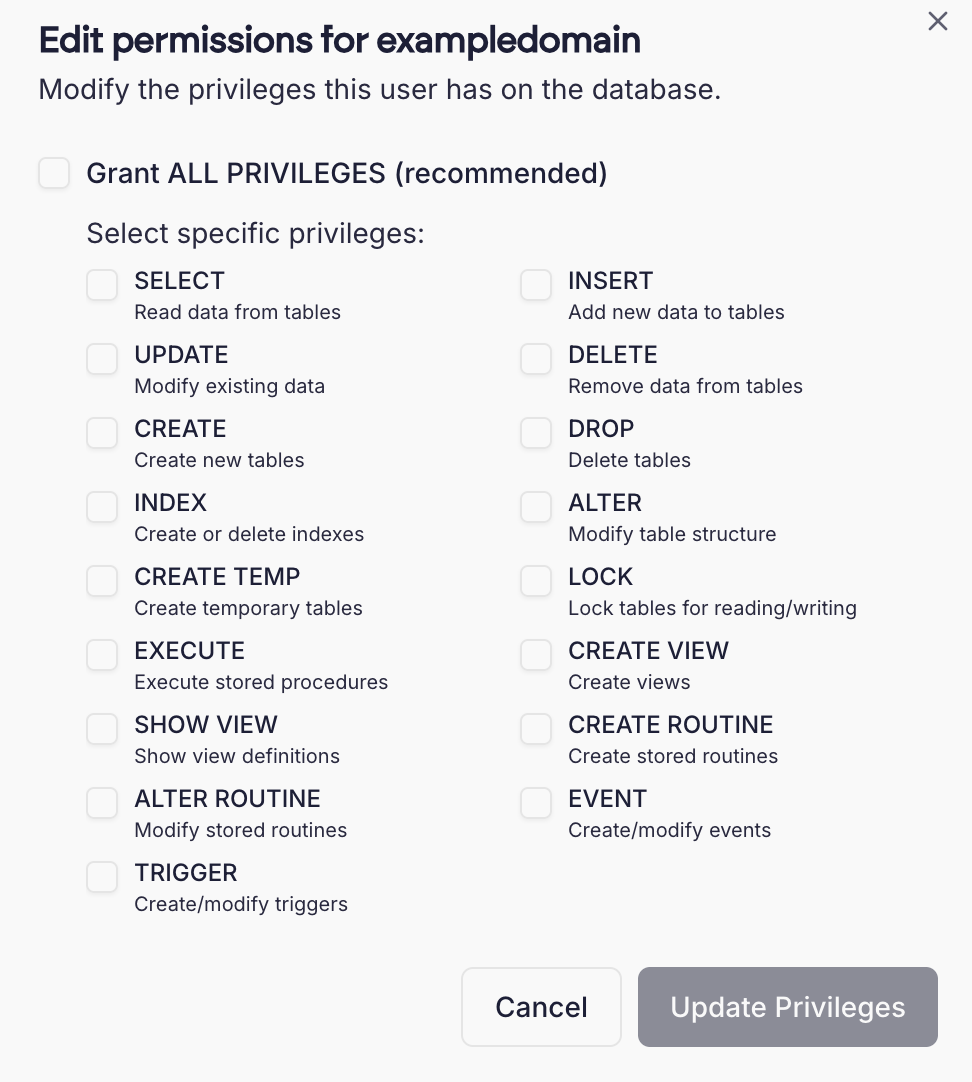
You can manage MySQL users by clicking the User icon next to the database. This will allow you to add additional MySQL users, set permissions, or reset a user’s MySQL password. This also allows you to set specific privileges for MySQL users- for example, you can create a read-only user with only theSELECT privilege on your database.
Using PHPMyAdmin
Some customers may wish to use the ‘PHPMyAdmin’ utility to manage their databases graphically. PHPMyAdmin is accessible from the “Tools” section of the left navigation menu.Accessing the MySQL command line
You can also perform common MySQL operations at the MySQL command line. You must be logged in asadmin to do this.
Importing data from a SQL dump
You may wish to import MySQL data into a newly-created database, using a.sql file created using mysqldump or similar.
To do this, issue the following as the admin user.
<dbname> for the database name and export.sql for the filename of your MySQL data.
Connecting from containers
Container sites use the server’s MySQL like any other site. Create the database from the site’s Databases tab, then connect to it from inside your containers using this host:localhost, so the database users Cito creates work as they are. MySQL is not exposed to the internet.