
Not sure which engine your server runs? Create a database, or look at the connection details of an existing one. A PostgreSQL server shows port
5432, a MySQL server shows port 3306.Creating a database
The Databases page lists every database on the server, with its users, the site that owns it and its size. You can use the search bar to filter for specific databases, and the ‘All servers’ checkbox to search for databases on other servers, if you have more than one.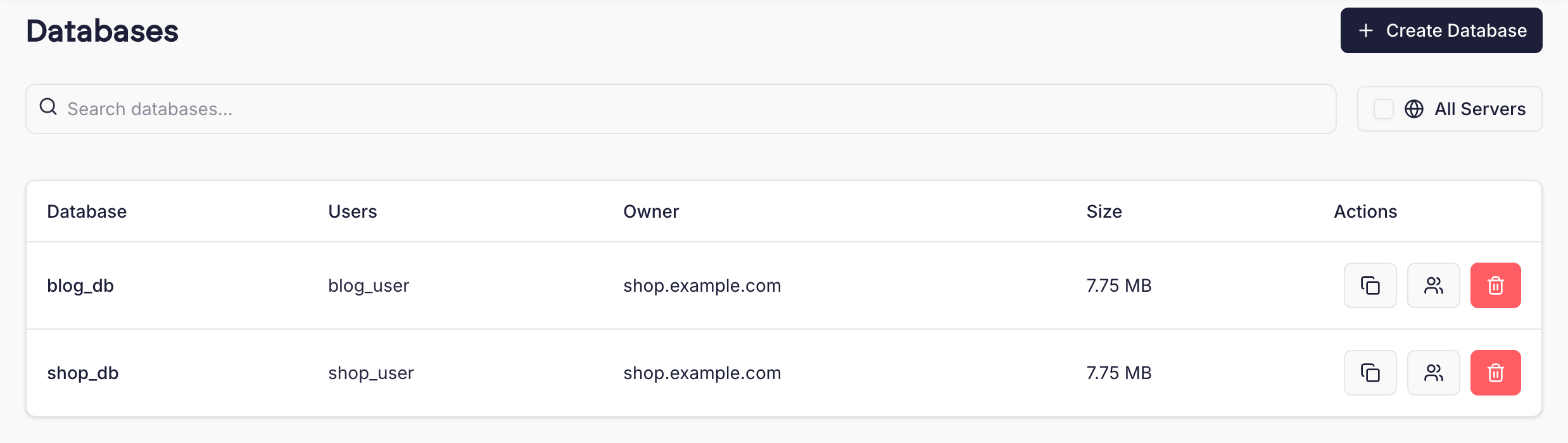 To add a new database, click the ‘Create Database’ button in the top right corner.
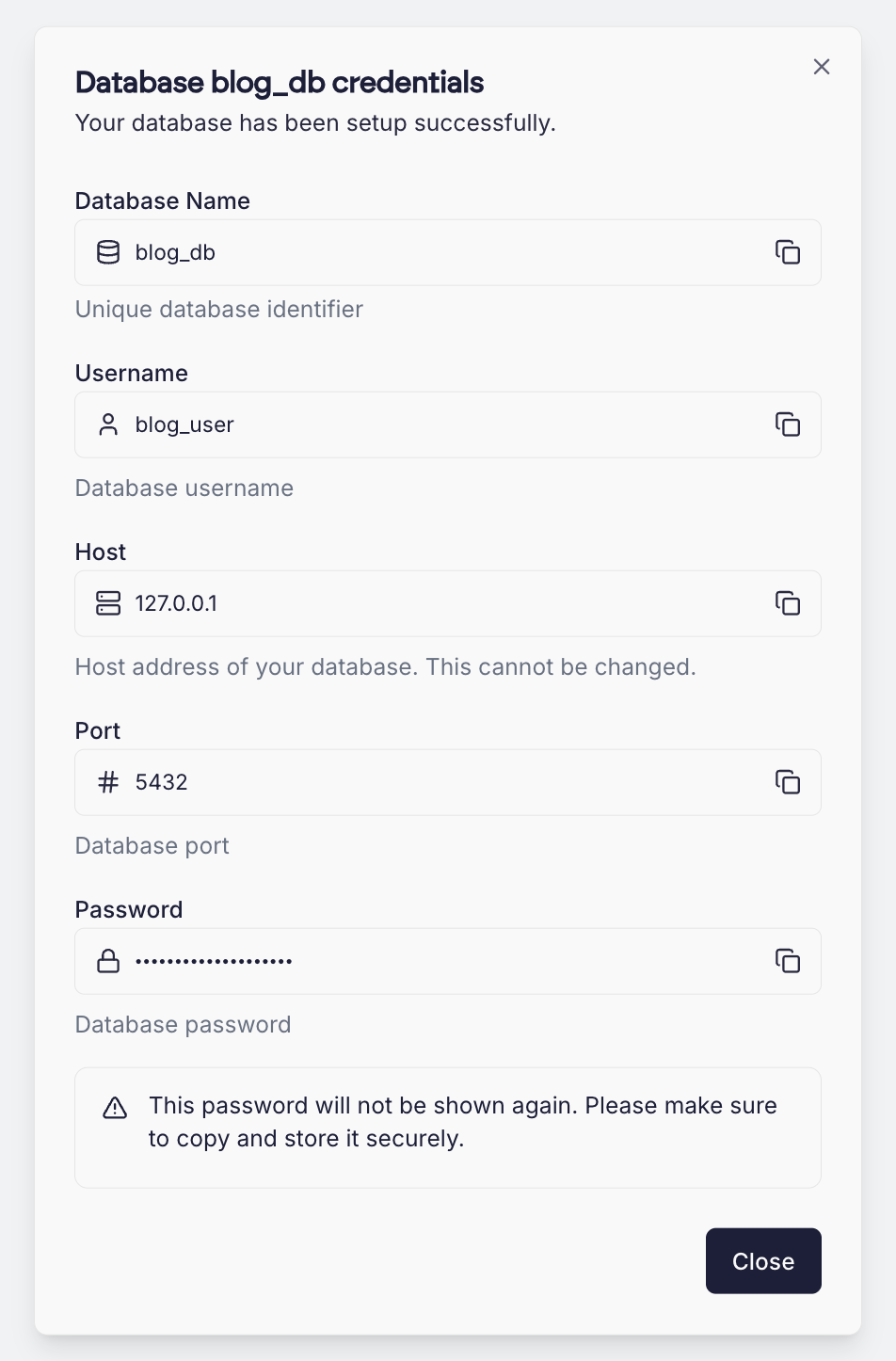
You will be prompted for a database name, username and password, and for the site that should own the database. See Database ownership for more about owners.
PostgreSQL names are stricter than MySQL names:
- Lowercase letters, numbers and underscores only. No capital letters and no hyphens.
- The name must start with a letter or an underscore.
- A database name can be up to 56 characters long, a username up to 63.
- The names
postgres,template0andtemplate1, and anything starting withpg_orcito_, are reserved.
Connecting to a database
Sites on the server connect to PostgreSQL with these details:
When you create a Laravel or Craft CMS site, Cito creates the database for you, writes these details into the site’s
.env file, and shows them as a connection string you can copy:
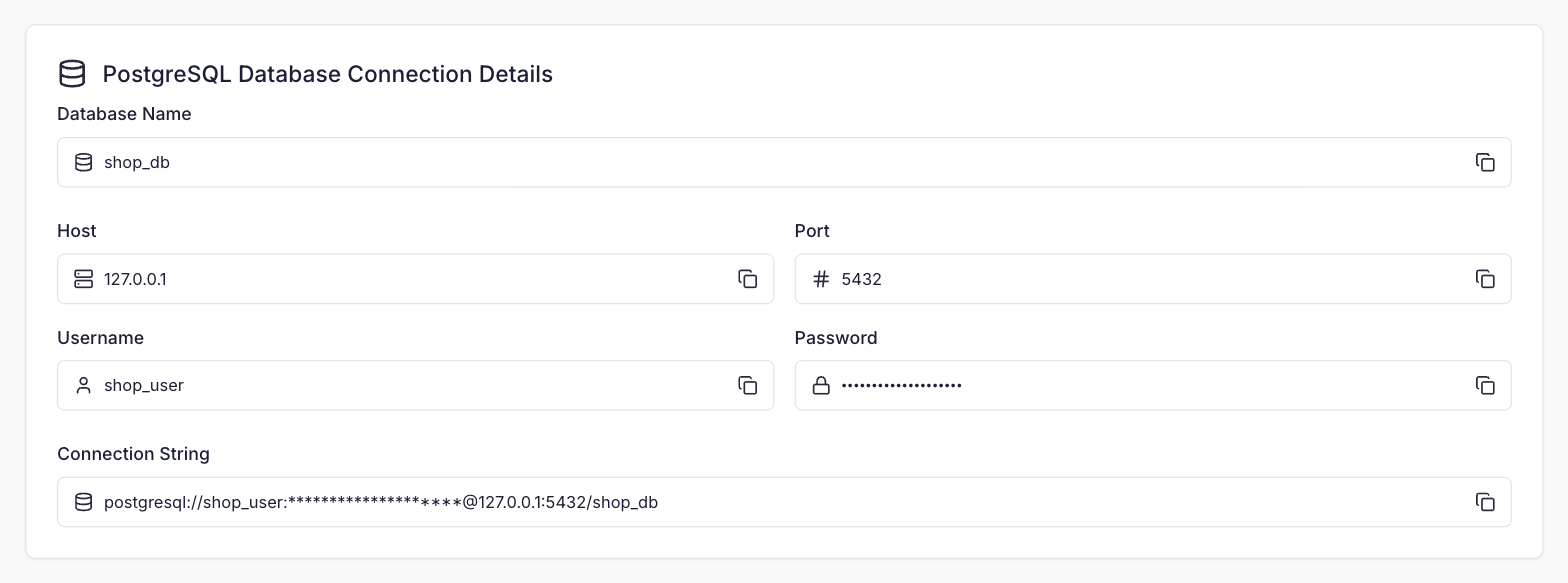 You can paste the connection string straight into
psql when logged in to the server over SSH:
Managing users
You can manage a database’s users by clicking the User icon next to the database. This lets you add more users, change what a user can do, or reset a user’s password. When you add a user you choose between two kinds of access:- All privileges (recommended). The user can do anything in the database, including creating, altering and dropping tables. Every user with all privileges can work with every table in the database, whichever of them created it.
- Specific privileges. The user can only do what you tick, on every table in the database, including tables created later. For example, tick only
SELECTto create a read-only user.
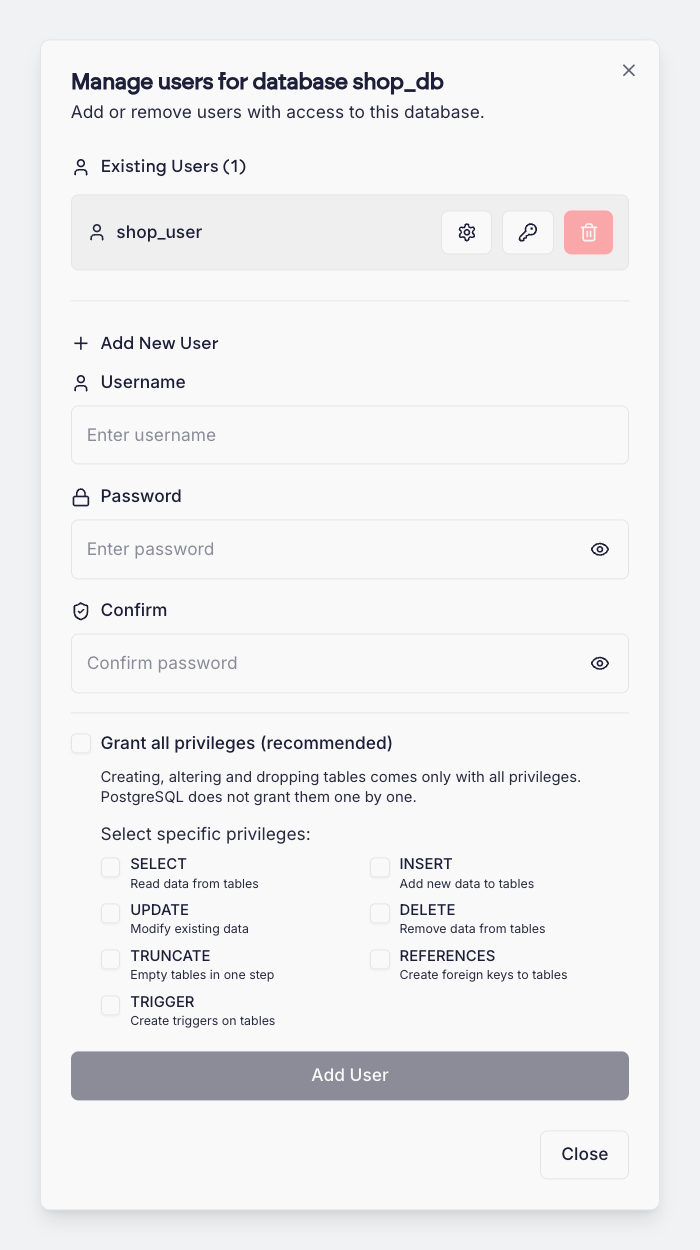 The privileges you can choose from are:
Creating, altering and dropping tables cannot be granted on their own in PostgreSQL. A user that needs to change the structure of the database needs all privileges.
Cloning databases
It can be useful to clone a database, for example if you need a copy of it for testing purposes. Cloning creates a new database with its own new user. The original database’s other users are not copied. To clone a database, click the Clone icon in the actions menu on the Databases page. You’ll need to specify a name for the new database, and a username and password for its user. Click Clone to start the process. You can carry on using the original database while it is being cloned. Large databases may take a few moments to complete.What’s different on a PostgreSQL server
Most of Cito works the same whichever database engine your server runs. A few things that depend on MySQL are not available:- WordPress, Magento and PrestaShop sites cannot be created, as these applications need MySQL. Laravel, Craft CMS, PHP, Node.js and the other site types are all available.
- phpMyAdmin is not available, as it only manages MySQL. Use
psqlover SSH, or your own PostgreSQL client. - Migrations from cPanel and WHM are not available, as the sites they bring across use MySQL databases.
- When you clone a site, its databases are cloned too, but the ‘Replace URLs in DB’ and ‘Auto-reconfigure’ options are WordPress features and are not offered. Update the cloned site’s configuration (for example its
.envfile) with the new database details yourself.